Recommended workflow
RiserForge is most reliable when the chart geometry is settled before the roster drives the final count. A dependable sequence is:
- Use File to set titles and handle configuration-file upload or download when you are resuming or handing off a session.
- Use Layout to choose the riser type, arrangement, row structure, and spacing.
- Use Shape, Sections, and Positions only where they apply to the selected layout until the slot pattern is workable.
- Open Roster Management after the layout is stable to import, clean, and organize people.
- Use the right sidebar to style chips, filter the roster, assign people, and disable blocked slots.
- Print the chart or assignment list, then save the session if it needs to be reused later.
Step 1: File setup and config workflow
- File contains Title, Subtitle, Upload, and Download.
- The top-right save-state badge is the quick status control for the current session.
- It shows Unsaved changes, Saved …, or Not saved yet.
- When the session is dirty, clicking that badge saves immediately.
- Configuration load problems appear in a popup dialog instead of being left inline in the ribbon.
Step 2: Build the layout
- Type can be Generic, Flat Platform/Floor, or a Wenger preset.
- Non-Generic layouts also expose Arrangement with Semicircular, Horseshoe, Winged when supported, or Straight.
- Non-flat layouts use Total Rows, Ground Rows, Steps, and Step Depth (in).
- Flat Platform/Floor uses Number of Rows and Row Depth (in) instead of the non-flat step controls.
- Use Shape only for Generic risers.
- Use Sections only for supported Wenger layouts. It is unavailable for Generic and Flat Platform/Floor.
Step 3: Create a workable position count
- The right sidebar shortcut Generate X Positions balances from the live roster count immediately.
- The Positions tab contains Position Count Source, Positions to Balance, and Balance.
- Choose Manual input when the roster is not final yet, or Use roster count when the roster should drive the total.
- Generic layouts also expose per-row Positions and Offset refinements after auto-balance runs.
Step 4: Import and clean roster data
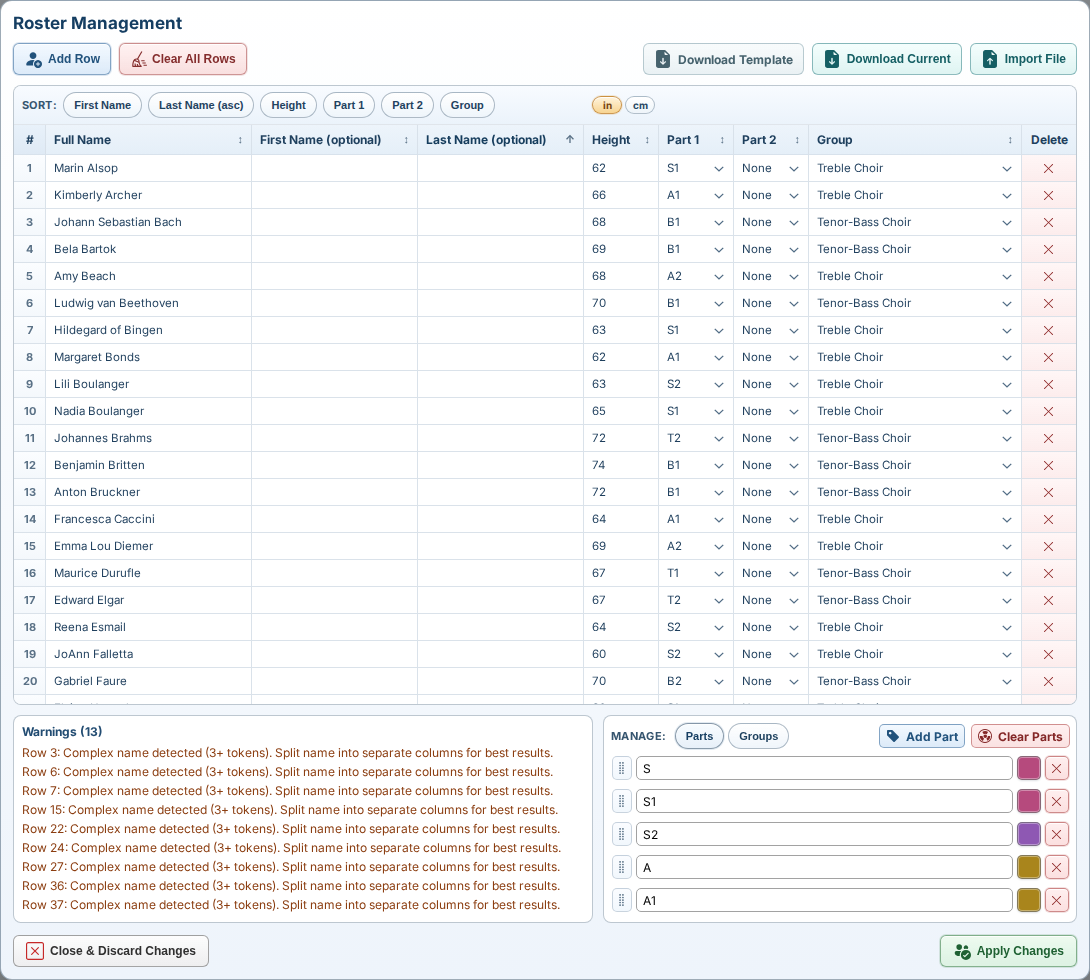
- Roster Management accepts
.csv, .xlsx, and .xls files.
- The toolbar includes Add Row, Clear All Rows, Download Template, Download Current, and Import File.
- The grid supports Full Name, First Name (optional), Last Name (optional), Height, Part 1, Part 2, and Group.
- Height entry and display can switch between in and cm.
- The Warnings panel highlights rows that still need cleanup.
Step 5: Manage Parts and Groups
- The Manage: panel in Roster Management has separate Parts and Groups tabs.
- In Parts, you can add, rename, reorder, recolor, or clear the labels used by both Part 1 and Part 2.
- In Groups, you can add, rename, reorder, recolor, or clear roster groups.
- Part and group colors feed the sidebar chip styling options later in the workflow.
Step 6: Style, filter, assign, and disable
- Style Options controls Color Mode, Chip Style, and Name Style for the unassigned roster list.
- Color Mode can follow Part 1, Part 2, Group, or None.
- Chip Style includes Name, Name + Height, Name + Part 1, Name + Part 2, Name + Parts, and Name + Group.
- Filter and Sort can filter Part 1, Part 2, and Group, then sort by name, parts, height, or group.
- Click a sidebar chip, then click an open slot to assign. Click-placement advances to the next unassigned person automatically.
- Click an assigned person to return them to the unassigned list.
- Drag assigned singers to move, swap, or remove them directly.
- Use Disable Positions when a slot must stay blocked or temporarily unavailable.
- Dropping a singer onto a disabled slot reopens it and assigns there.
Step 7: Print and save
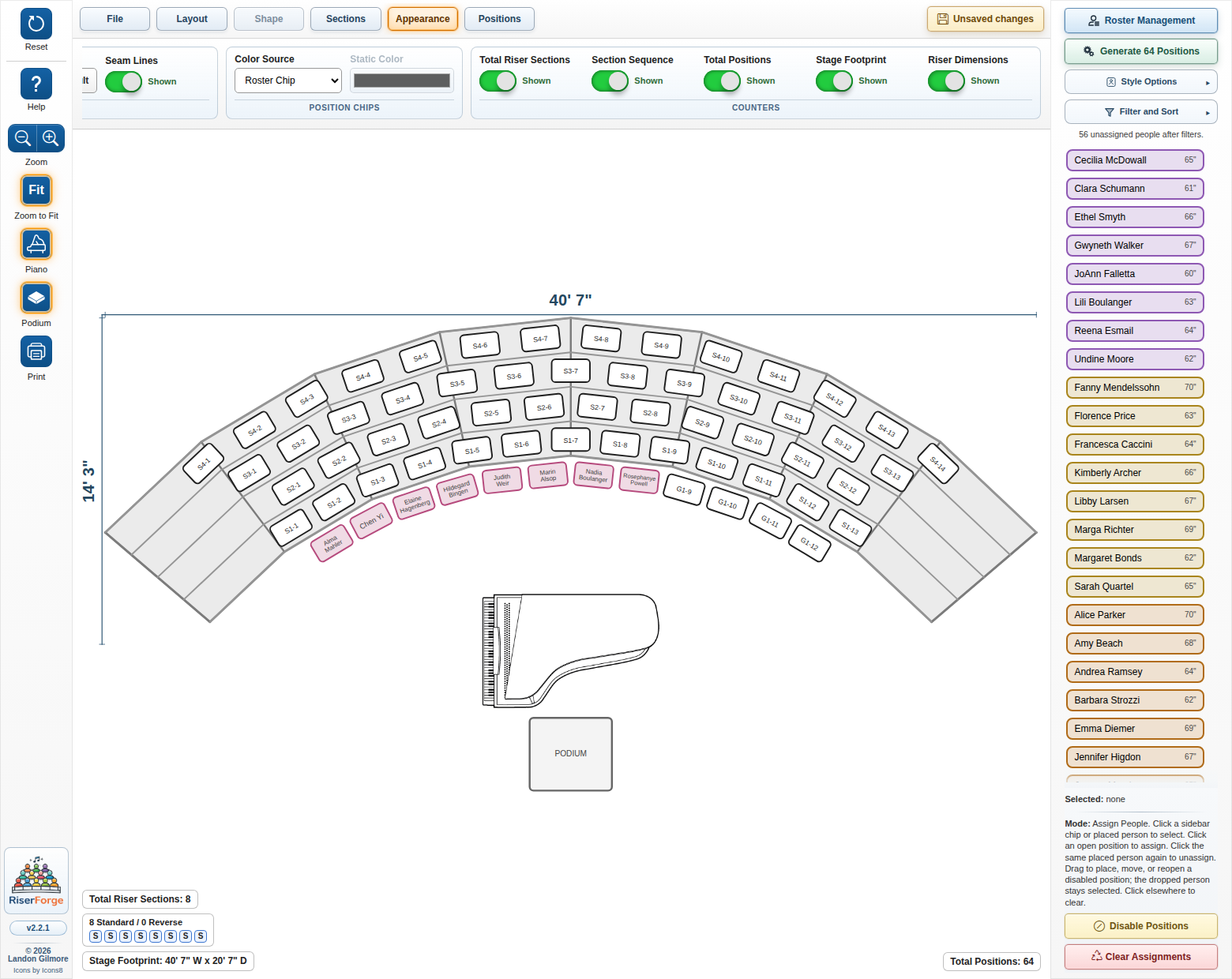
- Use Appearance to tune riser styling, position-chip color behavior, and on-chart counters.
- The counters include Total Riser Sections, Section Sequence, Total Positions, Stage Footprint, and Riser Dimensions.
- The left toolbar gives you Help, zoom controls, Piano, Podium, Print, and Reset to Defaults.
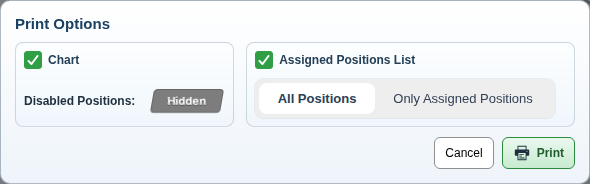
- The Print Options dialog can output the chart, the assigned list, or both in the same action.
- Download in File saves a reusable
.riserforge.json session and names it from the current title and subtitle when present, with a timestamp fallback for untitled layouts.
Workspace map
The app is split into four working areas:
- Left toolbar for help, zoom controls, piano or podium toggles, print, and reset.
- Top ribbon for File, Layout, Shape, Sections, Appearance, and Positions.
- Right sidebar for Roster Management, the Generate X Positions shortcut, Style Options, Filter and Sort, assignment mode, and disable mode.
- Center canvas for the chart itself, including direct interaction with positions and stage objects.
Roster tools
Roster work is centered in Roster Management, with sidebar tools taking over once the roster is active.
Roster Management dialog
- Use the sort buttons or table headers to reorder the draft by first name, last name, height, Part 1, Part 2, or group.
- The importer keeps part labels shared across the table, sidebar filters, and chip styles.
- Download Template gives you the current CSV column format.
- Download Current exports the working roster draft exactly as it stands.
Apply behavior
When roster data changes while the chart already has assignments, RiserForge asks how to reconcile the current layout:
- Cancel keeps the current chart and leaves the existing roster unchanged.
- Clear Assignments applies the new roster and empties the chart.
- Preserve Matches keeps assignments for singers who still match between the current and incoming roster.
Assignment and slot management
Assign mode
- Assign mode is the default sidebar state.
- Click-based and drag-based placement are both supported.
- After a drag drop, the dropped person stays selected so consecutive placements are faster.
- Clicking a placed person again unassigns them from the slot.
- Clear Assignments removes all current placements without changing the roster draft.
Disable mode
- Use the Disable Positions toggle when you need blocked slots.
- Disabled positions are not assignable until reopened.
- Dragging a singer onto a disabled slot reopens it and assigns the singer there.
- Piano and Podium can be toggled independently from the left toolbar.
- Both can be moved directly on the chart.
- The piano can be resized and rotated on the canvas.
- The podium can be resized directly on the canvas.
Printing and output
The print dialog is aimed at common rehearsal and performance handoff needs.
- Chart prints the current layout graphic.
- Assigned Positions List prints a table with position, status, person, Part 1, Part 2, height, and group.
- Both outputs can be enabled in the same action.
- Disabled positions on the chart can be Hidden or Shown.
- The assignment sheet can include All Positions or Only Assigned Positions.
Important behavior notes
Some results are intentionally solver-driven rather than strictly literal.
- Auto-balance favors workable row patterns, not just the raw total you typed.
- Some totals are mathematically unreachable for a given row structure, so the nearest feasible total may be used.
- If auto-fit has to tighten spacing, the Positions tab updates the displayed Position Spacing value to match.
- A warning appears only if maintaining windowing would require spacing tighter than 16 in.
- Manual row edits still follow geometry and windowing rules, so the drawn result may differ from a naive count expectation.
- Shape is available only for Generic risers.
- Sections is unavailable for Generic and Flat Platform/Floor layouts.
- Flat Platform/Floor derives its effective sectioning from the layout fit rules rather than a manual sections control.
- Sidebar filters change which unassigned chips are shown, not who exists in the roster.
 RiserForge Open App